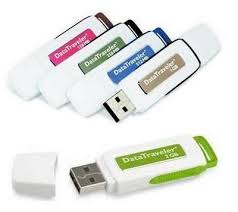
Sabtu

memperindah tampilan background flashdisk anda


ngin memperindah tampilan background flashdisk anda? caranya sukup mudah, anda tinggal meng copy tulisan di bawah ini:


[ExtShellFolderViews]
{BE098140-A513-11D0-A3A4-00C04FD706EC}={BE098140-A513-11D0-A3A4-00C04FD706EC}
[{BE098140-A513-11D0-A3A4-00C04FD706EC}]
Attributes=3
IconArea_Image=naufal.JPG

setelah meng copy’nya anda lalu membuka notepad, lalu paste kan. nah setelah tulisan tadi sudah ada di notepad, lihat dibawah ada tulisan “IconArea_Image=naufal.JPG ” yang tulisan saya miringkan itu alamat foto atau gambar yang akan jadi backgroud anda di flashdisk.

caranya anda tinggal mengganti tilisan “naufal.JPG ” dengan nama file gambar yang ingin anda jadikan backgound. misalnya IconArea_Image=naufal.JPG dan diganti menjadi IconArea_Image=cantikl.JPG.

dan setelah itu anda save di flashdisk anda dengan nama file desktop.ini, dan jangan disimpan didalam folder. dan setelah itu anda refresh dan lihat hasilnya……..

loh..loh.. ko engga berubah.!! anda lupa meng copy foto atau gambarnya di dalam flashdisk, dan satu lagi ukuran foto dan gambarnya jangan kecil, nanti tile lagi. yah paling tida 800X600 deh..biar hasilnya stretch deh..

shortcut di keyboard

banyak banget shortcut di keyboard yang baru ane tau loo...mau tau langsung ajeWindows key + R = Run menu

This is usually followed by:
cmd = Command Prompt
iexplore + "web address" = Internet Explorer
compmgmt.msc = Computer Management
dhcpmgmt.msc = DHCP Management
dnsmgmt.msc = DNS Management
services.msc = Services
eventvwr = Event Viewer
dsa.msc = Active Directory Users and Computers
dssite.msc = Active Directory Sites and Services
Windows key + E = Explorer

ALT + Tab = Switch between windows

ALT, Space, X = Maximize window

CTRL + Shift + Esc = Task Manager

Windows key + Break = System properties

Windows key + F = Search

Windows key + D = Hide/Display all windows

CTRL + C = copy

CTRL + X = cut

CTRL + V = paste

Also don't forget about the "Right-click" key next to the right Windows key on your keyboard. Using the arrows and that key can get just about anything done once you've opened up any program.


Keyboard Shortcuts

[Alt] and [Esc] Switch between running applications

[Alt] and letter Select menu item by underlined letter

[Ctrl] and [Esc] Open Program Menu

[Ctrl] and [F4] Close active document or group windows (does not work with some applications)

[Alt] and [F4] Quit active application or close current window

[Alt] and [-] Open Control menu for active document

Ctrl] Lft., Rt. arrow Move cursor forward or back one word

Ctrl] Up, Down arrow Move cursor forward or back one paragraph

[F1] Open Help for active application

Windows+M Minimize all open windows

Shift+Windows+M Undo minimize all open windows

Windows+F1 Open Windows Help

Windows+Tab Cycle through the Taskbar buttons

Windows+Break Open the System Properties dialog box


acessability shortcuts

Right SHIFT for eight seconds........ Switch FilterKeys on and off.

Left ALT +left SHIFT +PRINT SCREEN....... Switch High Contrast on and off.

Left ALT +left SHIFT +NUM LOCK....... Switch MouseKeys on and off.

SHIFT....... five times Switch StickyKeys on and off.

NUM LOCK...... for five seconds Switch ToggleKeys on and off.

explorer shortcuts

END....... Display the bottom of the active window.

HOME....... Display the top of the active window.

NUM LOCK+ASTERISK....... on numeric keypad (*) Display all subfolders under the selected folder.

NUM LOCK+PLUS SIGN....... on numeric keypad (+) Display the contents of the selected folder.

NUM LOCK+MINUS SIGN....... on numeric keypad (-) Collapse the selected folder.

LEFT ARROW...... Collapse current selection if it's expanded, or select parent folder.

RIGHT ARROW....... Display current selection if it's collapsed, or select first subfolder.


Type the following commands in your Run Box (Windows Key + R) or Start Run

devmgmt.msc = Device Manager
msinfo32 = System Information
cleanmgr = Disk Cleanup
ntbackup = Backup or Restore Wizard (Windows Backup Utility)
mmc = Microsoft Management Console
excel = Microsoft Excel (If Installed)
msaccess = Microsoft Access (If Installed)
powerpnt = Microsoft PowerPoint (If Installed)
winword = Microsoft Word (If Installed)
frontpg = Microsoft FrontPage (If Installed)
notepad = Notepad
wordpad = WordPad
calc = Calculator
msmsgs = Windows Messenger
mspaint = Microsoft Paint
wmplayer = Windows Media Player
rstrui = System Restore
netscp6 = Netscape 6.x
netscp = Netscape 7.x
netscape = Netscape 4.x
waol = America Online
control = Opens the Control Panel
control printers = Opens the Printers Dialog


internetbrowser

type in u're adress "google", then press [Right CTRL] and [Enter]
add www. and .com to word and go to it


CTRL+C (Copy)
CTRL+X (Cut)
CTRL+V (Paste)
CTRL+Z (Undo)
DELETE (Delete)
SHIFT+DELETE (Delete the selected item permanently without placing the item in the Recycle Bin)
CTRL while dragging an item (Copy the selected item)
CTRL+SHIFT while dragging an item (Create a shortcut to the selected item)
F2 key (Rename the selected item)
CTRL+RIGHT ARROW (Move the insertion point to the beginning of the next word)
CTRL+LEFT ARROW (Move the insertion point to the beginning of the previous word)
CTRL+DOWN ARROW (Move the insertion point to the beginning of the next paragraph)
CTRL+UP ARROW (Move the insertion point to the beginning of the previous paragraph)
CTRL+SHIFT with any of the arrow keys (Highlight a block of text)
SHIFT with any of the arrow keys (Select more than one item in a window or on the desktop, or select text in a document)
CTRL+A (Select all)
F3 key (Search for a file or a folder)
ALT+ENTER (View the properties for the selected item)
ALT+F4 (Close the active item, or quit the active program)
ALT+ENTER (Display the properties of the selected object)
ALT+SPACEBAR (Open the shortcut menu for the active window)
CTRL+F4 (Close the active document in programs that enable you to have multiple documents open simultaneously)
ALT+TAB (Switch between the open items)
ALT+ESC (Cycle through items in the order that they had been opened)
F6 key (Cycle through the screen elements in a window or on the desktop)
F4 key (Display the Address bar list in My Computer or Windows Explorer)
SHIFT+F10 (Display the shortcut menu for the selected item)
ALT+SPACEBAR (Display the System menu for the active window)
CTRL+ESC (Display the Start menu)
ALT+Underlined letter in a menu name (Display the corresponding menu)
Underlined letter in a command name on an open menu (Perform the corresponding command)
F10 key (Activate the menu bar in the active program)
RIGHT ARROW (Open the next menu to the right, or open a submenu)
LEFT ARROW (Open the next menu to the left, or close a submenu)
F5 key (Update the active window)
BACKSPACE (View the folder one level up in My Computer or Windows Explorer)
ESC (Cancel the current task)
SHIFT when you insert a CD-ROM into the CD-ROM drive (Prevent the CD-ROM from automatically playing)
Dialog Box Keyboard Shortcuts
CTRL+TAB (Move forward through the tabs)
CTRL+SHIFT+TAB (Move backward through the tabs)
TAB (Move forward through the options)
SHIFT+TAB (Move backward through the options)
ALT+Underlined letter (Perform the corresponding command or select the corresponding option)
ENTER (Perform the command for the active option or button)
SPACEBAR (Select or clear the check box if the active option is a check box)
Arrow keys (Select a button if the active option is a group of option buttons)
F1 key (Display Help)
F4 key (Display the items in the active list)
BACKSPACE (Open a folder one level up if a folder is selected in the Save As or Open dialog box)
m*cro$oft Natural Keyboard Shortcuts
Windows Logo (Display or hide the Start menu)
Windows Logo+BREAK (Display the System Properties dialog box)
Windows Logo+D (Display the desktop)
Windows Logo+M (Minimize all of the windows)
Windows Logo+SHIFT+M (Restore the minimized windows)
Windows Logo+E (Open My Computer)
Windows Logo+F (Search for a file or a folder)
CTRL+Windows Logo+F (Search for computers)
Windows Logo+F1 (Display Windows Help)
Windows Logo+ L (Lock the keyboard)
Windows Logo+R (Open the Run dialog box)
Windows Logo+U (Open Utility Manager)
Accessibility Keyboard Shortcuts
Right SHIFT for eight seconds (Switch FilterKeys either on or off)
Left ALT+left SHIFT+PRINT SCREEN (Switch High Contrast either on or off)
Left ALT+left SHIFT+NUM LOCK (Switch the MouseKeys either on or off)
SHIFT five times (Switch the StickyKeys either on or off)
NUM LOCK for five seconds (Switch the ToggleKeys either on or off)
Windows Logo +U (Open Utility Manager)
Windows Explorer Keyboard Shortcuts
END (Display the bottom of the active window)
HOME (Display the top of the active window)
NUM LOCK+Asterisk sign (*) (Display all of the subfolders that are under the selected folder)
NUM LOCK+Plus sign (+) (Display the contents of the selected folder)
NUM LOCK+Minus sign (-) (Collapse the selected folder)
LEFT ARROW (Collapse the current selection if it is expanded, or select the parent folder)
RIGHT ARROW (Display the current selection if it is collapsed, or select the first subfolder)
Shortcut Keys for Character Map
After you double-click a character on the grid of characters, you can move through the grid by using the keyboard shortcuts:
RIGHT ARROW (Move to the right or to the beginning of the next line)
LEFT ARROW (Move to the left or to the end of the previous line)
UP ARROW (Move up one row)
DOWN ARROW (Move down one row)
PAGE UP (Move up one screen at a time)
PAGE DOWN (Move down one screen at a time)
HOME (Move to the beginning of the line)
END (Move to the end of the line)
CTRL+HOME (Move to the first character)
CTRL+END (Move to the last character)
SPACEBAR (Switch between Enlarged and Normal mode when a character is selected)
m*cro$oft Management Console (MMC) Main Window Keyboard Shortcuts
CTRL+O (Open a saved console)
CTRL+N (Open a new console)
CTRL+S (Save the open console)
CTRL+M (Add or remove a console item)
CTRL+W (Open a new window)
F5 key (Update the content of all console windows)
ALT+SPACEBAR (Display the MMC window menu)
ALT+F4 (Close the console)
ALT+A (Display the Action menu)
ALT+V (Display the View menu)
ALT+F (Display the File menu)
ALT+O (Display the Favorites menu)
MMC Console Window Keyboard Shortcuts
CTRL+P (Print the current page or active pane)
ALT+Minus sign (-) (Display the window menu for the active console window)
SHIFT+F10 (Display the Action shortcut menu for the selected item)
F1 key (Open the Help topic, if any, for the selected item)
F5 key (Update the content of all console windows)
CTRL+F10 (Maximize the active console window)
CTRL+F5 (Restore the active console window)
ALT+ENTER (Display the Properties dialog box, if any, for the selected item)
F2 key (Rename the selected item)
CTRL+F4 (Close the active console window. When a console has only one console window, this shortcut closes the console)
Remote Desktop Connection Navigation
CTRL+ALT+END (Open the m*cro$oft Windows NT Security dialog box)
ALT+PAGE UP (Switch between programs from left to right)
ALT+PAGE DOWN (Switch between programs from right to left)
ALT+INSERT (Cycle through the programs in most recently used order)
ALT+HOME (Display the Start menu)
CTRL+ALT+BREAK (Switch the client computer between a window and a full screen)
ALT+DELETE (Display the Windows menu)
CTRL+ALT+Minus sign (-) (Place a snapshot of the active window in the client on the Terminal server clipboard and provide the same functionality as pressing PRINT SCREEN on a local computer.)
CTRL+ALT+Plus sign (+) (Place a snapshot of the entire client window area on the Terminal server clipboard and provide the same functionality as pressing ALT+PRINT SCREEN on a local computer.)
m*cro$oft Internet Explorer Navigation
CTRL+B (Open the Organize Favorites dialog box)
CTRL+E (Open the Search bar)
CTRL+F (Start the Find utility)
CTRL+H (Open the History bar)
CTRL+I (Open the Favorites bar)
CTRL+L (Open the Open dialog box)
CTRL+N (Start another instance of the browser with the same Web address)
CTRL+O (Open the Open dialog box, the same as CTRL+L)
CTRL+P (Open the Print dialog box)
CTRL+R (Update the current Web page)
CTRL+W (Close the current window)

buat film sederhana pake ms paint sama movie maker

memang nggak cukup sempurna .tapi cukup bagus...kaya' sepupu aku ..yah ngk cukup bagus tapi lumayan buat ngeluari imjinasi kite

nih video yang dia buat :


nih tutorial cara use that thing ..aku ambil di you tube ada 2 :


ini yang part 2

]

okey..mudah2an...bermanfaat..oh iye kalo ente-ente ngk ada ato ilang tu windows movie maker

download di sini aje ..ane ngambilnya dari www.download.com

okey...

oh iye nih ge tampilin gambar sepupu ane roy siapa yang mau kenal klik aje gambarna okey..thanks


memata-matai sms???

SMS Trap
software yang bisa buat baca'in sms orang laen
siap untuk aplikasi mata-mata yg keren? ingin lu tes pacar ente atau maenin shohib?

А)masuk ke halaman ke halaman sms trap dan register/daftar
B) download aplikasi
C) install aplikasi itu k hp pcar atau shohib ente
DAN SELESAI !
setelah ente selesai dengan A,B,C diatas ..lu bakal bisa baca inbox dan berita terkirim mereka

di site sms trap ..di account ente yang ente register/daftar tadi

ente bakal bisa baca semua..online !
klik di sini untuk tutorial/contoh
cepet makanya kunjungin www.smstrap.com

oke..oke..okepou

bayangan/hantu jacko di neverland?

Rekaman sekelebat bayangan di bekas rumah Michael Jackson, Neverland Ranch yang dilansir situs YouTube, menggemparkan dunia maya. Muncul spekulasi bayangan tersebut adalah penampakan arwah Jacko


Bayangan hitam yang bergerak menyebrang koridor, dari arah kiri ke kanan, kemudian lenyap, tak sengaja tertangkap kamera saat penayangan langsung program televisi CNN, ‘Inside Neverland’, yang diisi wawancara antara Larry King dan kakak Michael, Jermaine Jackson.

Benarkan bayangan tersebut penampakan hantu Jacko? Untuk mencari kebenaran soal ini, reporter New York Post’s PopWrap, Jarett Wieselman sampai harus mewawancarai dua ahli spiritual, Jason Hawes and Grant Wilson. Keduanya juga pemain dalam serial Ghost Hunter.

“Itu hanya bayangan seseorang yang sedang berjalan di kejauhan,” kata mereka, dengan harapan jawaban ini akan mengakhiri spekulasi ‘hantu’ Jacko.

“Kami sering menjumpai hal ini. Orang tersebut kemungkinan berada di kiri ruangan dan badannya menghalangi cahaya,” kata dia seperti dimuat laman Scifiwire, Selasa 7 Juli 2009.

Pernyataan pihak stasiun televisi CNN, juga membantah semua spekulasi yang beredar soal hantu ‘King of Pop’. Ini dia cerita ‘hantu’ Jacko versi mereka:

“Seorang kru berjalan melintasi peralatan pencahayaan, menciptakan bayangan di dinding.”

Yup, itulah yang terjadi. Seperti dimuat laman Gawker, Selasa 7 Juli 2009, hanya orang yang punya cukup oksigen di kepalanya bisa mendeduksi fenomena itu dengan rasional.

Namun, beberapa penggemar berat Jacko tak mau mempercayai jawaban itu. Sharon, misalnya, masih percaya itu adalah bayangan idolanya.

“Itu adalah bayangan Jacko. Saya bisa merasakan arwahnya menginginkan jasadnya segera dikuburkan agar dia bisa segera beristirahat dengan tenang,” kata Sharon, kepada Scifiwire.


Kegerahan Mulai Muncul ketika selubung ke Egoisan Mulai Menyelimuti Tempat Tidur mimpiq
Aroma Harapan Menghilang bagai hari yg brlalu
di iring rasa Gagal seblm mencoba
Apa ini Di Sebt ke Cundangan
Apa ini Di Sebt KegagalanSenyum
Semua Hampa mulai menertawakanku
Sang Pencipta..Bangunkan aq dr mimpi imajinasi brcmpur ELEGI

Aku ingin berontak!!tapi Kepesimisan hati membungkamku

Dengan bangga Kepesimisan,mengeluarkan anak2nya,untk mengurung dan melemparkanku ke jurang kejenuhan,

Inisialisasi Registry Tanpa Harus Restart Windows

Setiap kali terjadi perubahan data pada sistem registryWindows, baik itu adanya penambahan maupun penghapusan nilai, maka registry harus di inisialisasi kembali ke dalam sistem operasi dengan cara me-restart
Windows.

Hal ini biasanya kita alami setelah menginstal atau menguninstal sebuah aplikasi.

Namun me-restart komputer kadang bisa memakan proses yang cukup lama, walaupun masih tergantung dari spesifikasi hardware yang dimiliki.
Sebenarnya ada cara lain untuk inisialisasi registry tanpa harus
me-restartWindows.

Berikut ini caranya :

• Pada Windows 95/98/ME :
Tekan [Ctrl]+[Alt]+[Delete]
untuk menampilkan TaskManager. Kemudian pilih Explorer dan tekan [End Task].
Jika menu Shutdown muncul tekan [Cancel]. Setelah beberapa detik maka akan
muncul pesan error lalu pilih
[End Task].

• Pada Windows 2000/NT/XP :
Tekan [Ctrl]+[Alt]+[Delete]
atau [Ctrl]+[Shift]+[Esc] atau bisa juga melalui klik kanan pada
taskbarWindows dan pilih [TaskManager] untuk menampilkan
Task Manager. Kemudian pilih tab [Processes] dan cari proses
explorer.exe. Pilih proses tersebut lalu tekan [End Process].
Pilih [Yes] pada jendela pesan peringatan. Secara
otomatis desktopWindows akan menghilang. Selanjutnya tekan
pada menu [File] atau pada tab [Aplications] pilih [New Task],
lalu ketik explorer dan terakhir tekan [OK].
Sedikit tambahan, sebelum melakukan trik diatas alangkah
baiknya menyimpan atau menutup semua aplikasi yang
sedang dijalankan.

carakunci desktop

Apabila anda ada keperluan ingin meninggalkan komputer anda sejenak dan tak ingin ada orang lain mengoperasikan komputer anda tanpa seijin anda, maka anda dapat mengunci dekstop anda.
Cara mengunci dekstop anda dapat anda lakukan dengan menekan tombol WinKey pada keyboard (tombol dengan logo windows) dan dibarengi menekan tombol L (WinKey+L).
Cara lain adalah anda dapat membuat shortcut pada dekstop dengan memasukkan kode runll32.exe user32.dll, LockWorkStation. Berikut adalah langkah pengerjaannya.Pada dekstop windows anda klik kanan mouse, setelah itu pilih new | shortcut.
Dalam wizard create Shortcut anda ketik runll32.exe user32.dll, LockWorkStation. setelah itu next.
Dalam wizard select a title for the program anda beri nama shortcut.
Setelah itu finish.

SELAMAT MENCOBA

Lewat regedit kita bisa mematikan settingan tersebut, caranya buka menu start trus klik run lalu ketikkan regedit kemudian enter. Setelah aplikasi regedit terbuka silahkan menuju pada Hotkey current User, kemudian buka submenu software, lalu Microsoft trus windows, current version lalu policies, pada policies buat sebuah key baru dengan cara sorot pada policies lalu pada bidang sebelah kanan klik kanan dan pilih pada menu "new" sebuah key lalu berinama ActiveDesktop. Setelah itu pada key baru tadi buat sebuah Dword baru dan beri nama NoChangingWallpaper. Setelah itu klik kanan pada Dword NoChangingWallpaper kemudian diklik kanan lalu pilih modify dan beri value 1.
Atau bisa juga dengan cara yang lebih simple yaitu lewat gpedit. Caranya klik start kemudian pilih menu run lalu ketikkan gpedit.msc kemudian pilih submenu desktop pada menu user configuration, disitu terdapat banyak sekali settingan untuk komputer kita. Untuk disable pengubahan wallpaper, pilih menu control panel dan pilih menu desktop lalu dobel klik pada menu prevent changing wallpaper dan ganti pilihan pada enable.
Sebenernya disitu masih banyak lagi fitur fitur untuk setingan komputer, dan silahkan anda untuk mencoba dan menggunakannya sesuai kebutuhan.

Cara ini tanpa memerlukan anda install 3rd party software
Start > Run > mmc > OK (akan keluar console1)
File > Add/Remove Snap-in
Klik Add > Choose Group Policy & Klik Add > Finish
Close balik Add Standalone Snap-in tuh & klik OK dekat add remove snap-in
Dlm Console Root
Pegi pd Local Computer Policy > User configuration > Administrative templates > Desktop > Control Panel > Display
Kat dlm tuh.. ko enable kan remove desktop, hide desktop,changing wallpaper, appearance, theme, setting tab n yg mana2 ko nak buat...
pastuh... set password pd account administrator & suruh anak buah ko login guna account restricted user shj..

kalo ko nak disable kan dia dari trus guna control panel pun takpe.. lagi bagus... ko just pegi kat control panel tuh... & modified pada menu prohibit access to control panel.
Untuk mengunci tampilan desktop, lagi-lagi kita menggunakan registry editor. Buka registry editornya, kemudian temukan key berikut ini:
HKEY_CURRENT_USER | Software | Microsoft | Windows | CurrentVersion | Policies
Setelah keynya ketemu, buatlah sebuah key baru dengan nama ActiveDesktop. Sehingga keynya menjadi seperti ini:
HKEY_CURRENT_USER | Software | Microsoft | Windows | CurrentVersion | Policies | ActiveDesktop
Kemudian di key ActiveDesktop, buatlah sebuah DWORD Value dengan nama NoChangingWallpaper. Klik ganda value tersebut, dan isikan datanya dengan 1. Restart PC atau logout untuk melihat perubahan. Sekarang coba ganti wallpapernya, bisa?